Showing posts with label tips. Show all posts

Thursday, February 11, 2010

How to Bypass Sharecash Surveys

Note: It only works with Mozilla Firefox!

1. Simply open Firefox and search in Google greasemonkey addon or

2. Go staight here : https://addons.mozilla.org/en-US/firefox/addon/748

3. Click Add to Firefox button to install

4. Restart Firefox (the addon icon should appear like this)


6. Once there, search for " Sharecash Autodownload " or go herehttp://userscripts.org./scripts/show/51648

7. Choose the result (you should get the one with good rating)

8. Click Install button

9. Greasemonkey Installation pops up, click Install again

10. Right click on greasemonkey icon -> Manage User Scripts...

11. Add " http://userscripts.org/* " to Included pages and close
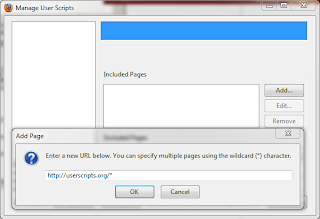

12. Done (you should now enjoy downloading your files) :)

Peace of mind:  That's how a company get a penny cent from free users, so guys it only takes a couple seconds to fill out the surveys.

Get a Sharecash premuim account or find out more about Sharecash.org

Tuesday, February 2, 2010

Get into free sites without registering

Do you always have to register on a free website just to read a news article or view some pictures of your friends? Stop risking a barrage of annoying spam by registering such sites. There is an easy way to get members-only content without enduring the hassle of signing up for an account.

Bugmenot is a free site that stockpiles user-generated account log-ins and passwords so that users don't have to provide their own personal information. If you are using Internet Explorer then go to the Bugmenot website and type in the URL of the site that you'd like to log in to. Bugmenot will return a list of user names and passwords that you can use to log in successfully. That's cool huh? 
For Firefox users, the Bugmenot add-ons will automate the service asking you to install it straightaway. After you install the Bugmenot extension, the next time you encounter a required log-in prompt for a free site, right-click the username or email address box and select login with Bugmenot. Repeat the process if the initial attempt doesn't work; the plug-in might have used old information the first time around. Otherwise, you should slide into the registration-required content without a hitch.

500 Digital Hints, Tips, & Techniques for Every Internet User: All-in-One Guide to Those Inside Secrets for Blogging, Vlogging, Photologging, MySpace, ... eBay, Google, and More! (500 (RotoVision))Internet Visual Quick TipsThe Internet For Dummies
PC World December 2009 100 Best Products of the Year * Best Big Screen HDTVs * Sneaky Fees * To E-Book Readers (Volume 27)PC World, January 2010 * Performance Boosters * Best Antivirus Programs For You * Future Technology * GPS DevicesPC World Inside Windows 7 (Volume 27, Number 11 November 2009)

How to lock and unlock your computer automatically

New technology makes life easier. That's what we want right? Have you wondered is there any app that can just lock off your computer without having to touch the keyboard? Well, there is. Thanks to the open source that makes the world such a wonderful place.  

BtProx ( http://btprox.sourceforge.net/) is a free application that monitors the proximity of your computer to your cellphone or other bluetooth device. It will lock off your computer automatically, protecting its contents  from prying eyes when the phone goes out of range which means you walk away from your computer. Obviously, you would take your cellphone with you when you leave, wouldn't you? It will also unlock automatically when you return back, with your cellphone or other bluetooth device of course. In addition, with BtProx, you can set up an arrangement that automatically locks your computer and turns on the PC security system when you step away from the machine.

Sunday, January 31, 2010

How to make a header image using Photomerge

Suppose you have a couple of photos shot from different angles and you want to create a banner by blending them all together. Today I am going to show you how to do this using Adobe Photoshop CS3. Let's get started.

Here are the photos I am going to use:


Step 1: 
Open File -> Scripts -> Load Files into Stack and load Layer dialogue box pops up. Browse to any files you want to use then click OK. You should see in the layer panel the picture you have stacked.


Step 2:
Now we got all our objects loaded into the stack here, we are going to attempt to stitch them all together using photomerge in adobe CS3. So select all the photo layers (Ctrl+Click/Shift+Click) to select more layers and go to Edit -> Auto-Align Layers. Now this is gonna bring up Align dialogue box. Choose Auto -> ok. This is what you should see.


Step 3:
What we need to do now is to get rid of the transparent area on top and the bottom and we also need to get rid of these themes here in the middle. Here I'm going to use crop tool and select the image area.


Once satisfied, hit Enter


Step 4:
As you can see, there is still significant problems here with the tonality of this image. We could fix by adjusting opacity setting and level adjustments and stuff but Photoshop has a really nice built-in feature that allows us to blend images together. To do this, go to Edit -> Auto-Blend Layers. Photoshop will perfectly blend these 3 images together.


There you have it. It's simple, easy and nice looking banner.

Adobe Photoshop CS3 Video Training Course for Beginner Adobe Photoshop CS3 Extended Tutorial Training in 3 DVDs By KeykoPhotoshop Video Tutorial
Mastering Photoshop Elements 5.0 Basic Training TutorialPhotoshop Elements Basics: How to Edit, Fix, Enhance & add Artistic Effects to Your Digital PhotosAdobe Photoshop Elements 8

Friday, January 29, 2010

Tools to help customize blog templates

If you are using mozillar firefox, you are in luck because there are plenty of add-ons out there to help you do just your work. I have been using Firebug and ColorZilla addons for a while and they have done a great job.


Firebug is a web development tool that you can use to view and modify live page source code including CSS style and Script right on your browser. So for you blog blokes, this would save your time customizing your blog templates. A combination with this is CollorZilla. It is an advanced eyedropper. So you can detect any color used on any pages without leaving your browser. You can even zoom out for clarity, measure distance between any two points and get color in Hex color code. For more web development tools please visit https://addons.mozilla.org/en-US/firefox/browse/type:1/cat:4

Monday, January 25, 2010

Download youtube without using any software

Hard to find any apps to download youtube? Now you don't need it. Simply download it with
the OK word.

Just type ok in between www. and youtube

For example: http://www.youtube.com/watch?v=sB2jEhDZyBk&feature=popular

to http://www.okyoutube.com/watch?v=sB2jEhDZyBk&feature=popular  (Download in FLV)

to http://www.3.okyoutube.com/watch?v=sB2jEhDZyBk&feature=popular (Download in 3GP)

to http://www.4.okyoutube.com/watch?v=sB2jEhDZyBk&feature=popular (Download in MP4)

Note: OK can be UPPERCASE.

Sunday, January 24, 2010

How to change body background color to image in blog template

If you're using standard blog templates, then you should see a block of CSS style. So what you need to do is go to Layout -> Edit HTML and look for something like this:

body{
    background: #3c3533;
    margin: 0;
    padding: 0;
    color: #fff;
    font-family: Verdana, Tahoma, Georgia;
    font-size: 12px;
    line-height: 20px;
}

then change background: #3c3533; to background: url(http://exmaple.jpg);
save the template and you're done.
 

Followers

Tips Of Geek Copyright © 2009